
AI photo cutouts
Green Screen Remover
Separate your subject from the green backdrop. Keep the person or product ready for your next composition.
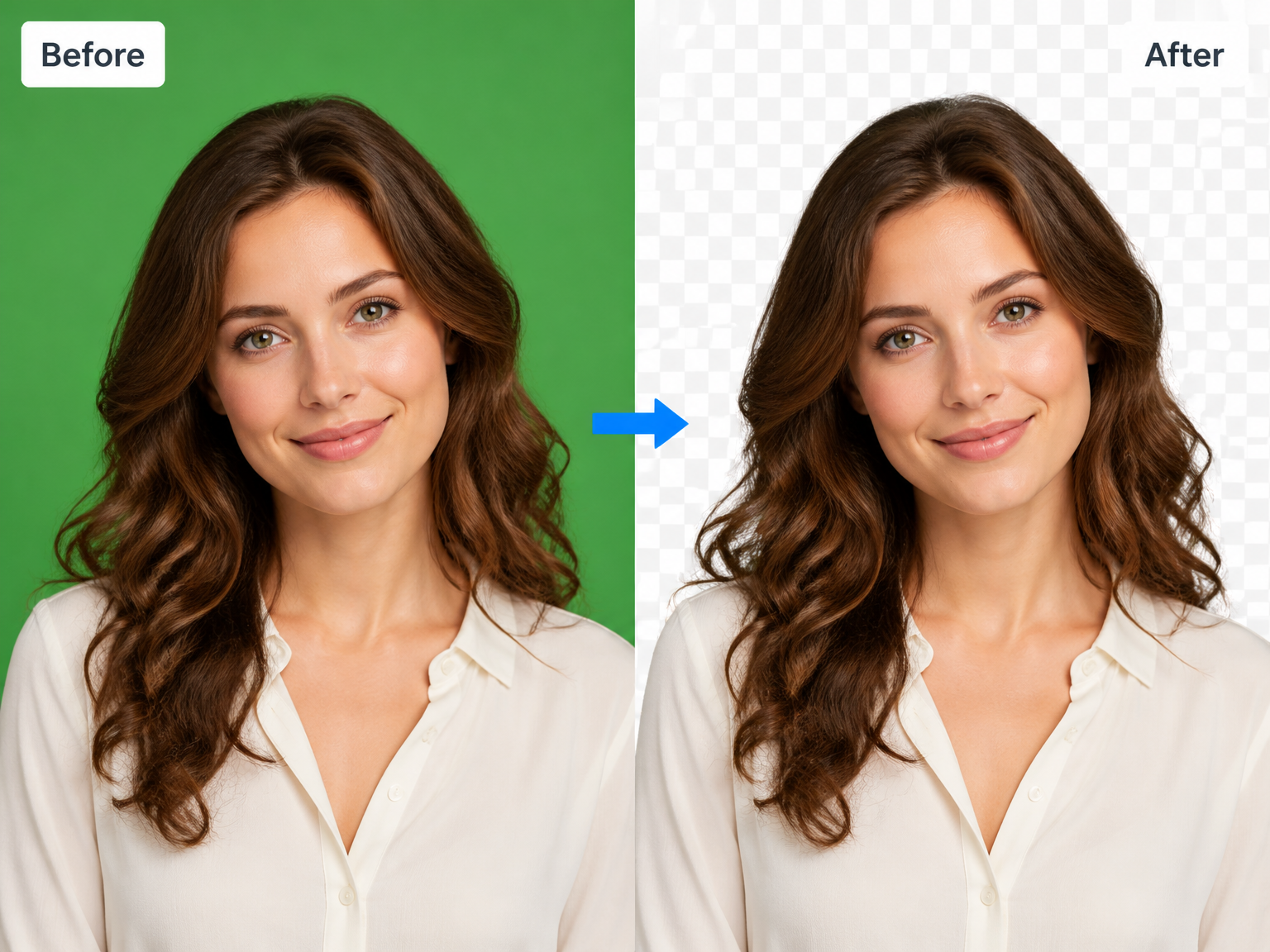
From screen to scene
Remove green backdrops from real photo projects
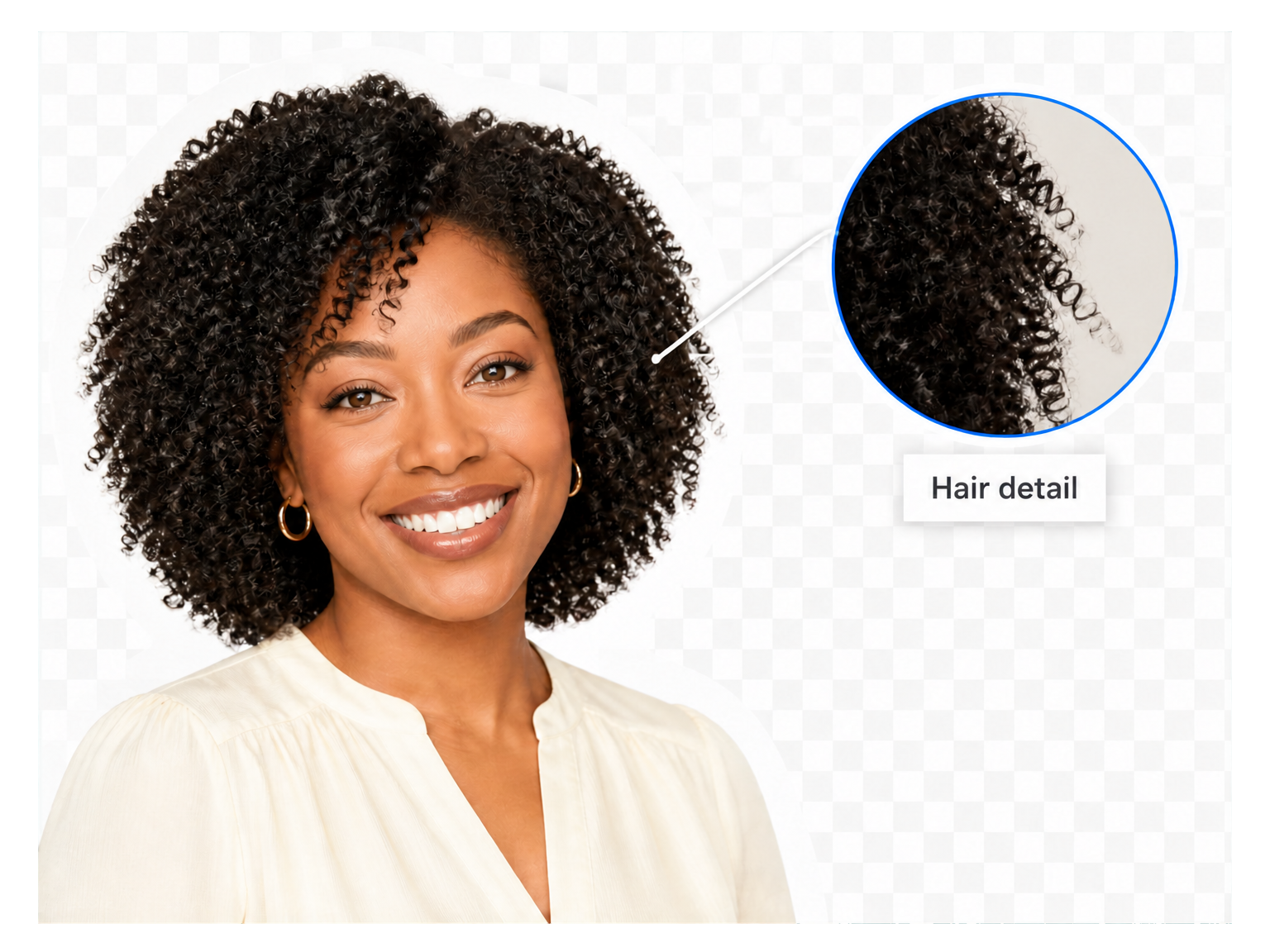
Portraits beyond the backdrop
Separate hair, shoulders, and clothing from the studio screen for headshots and creative portraits.
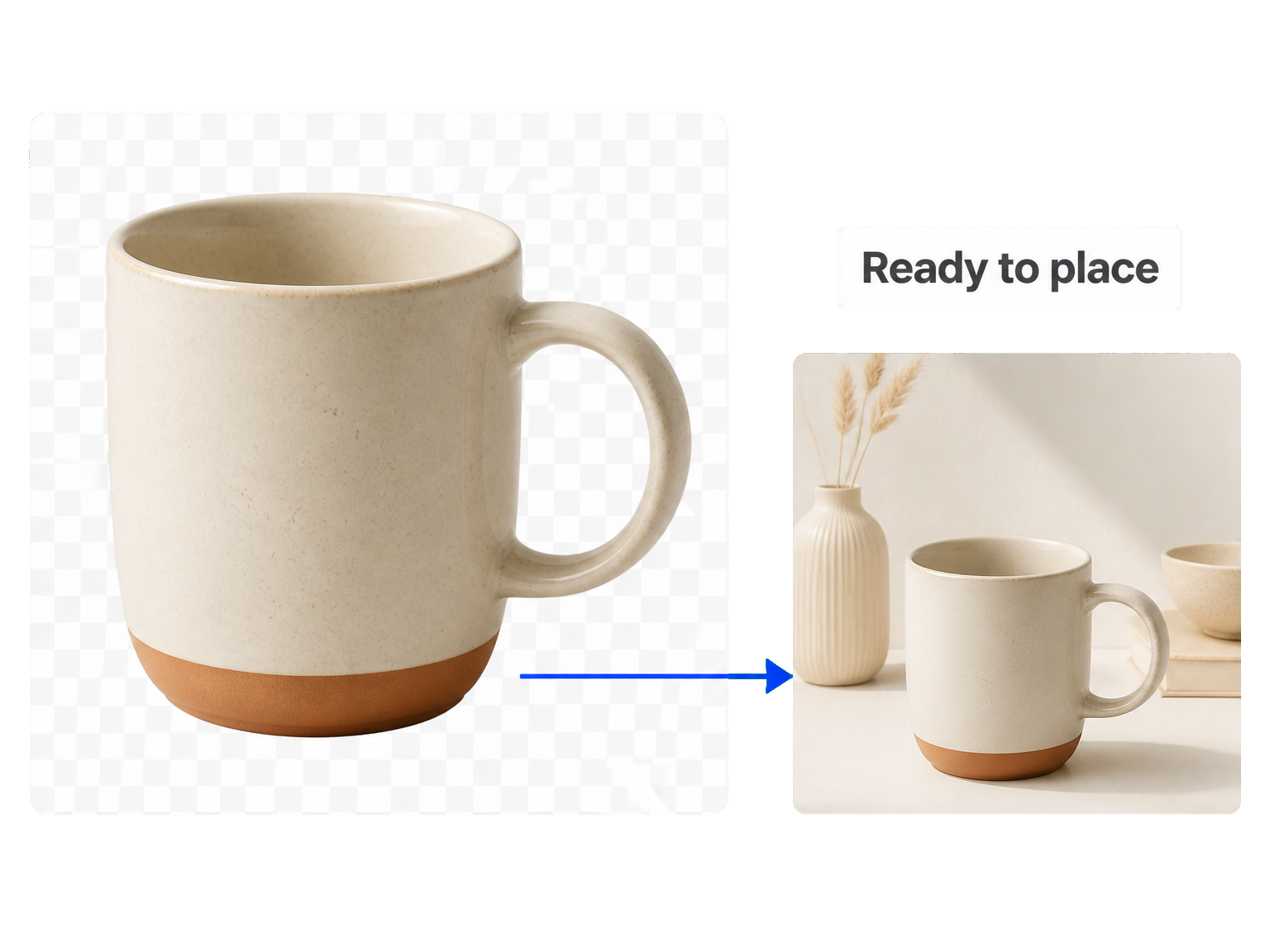
Products ready for a new setting
Remove green backgrounds from product photos so the object takes center stage in your next layout.
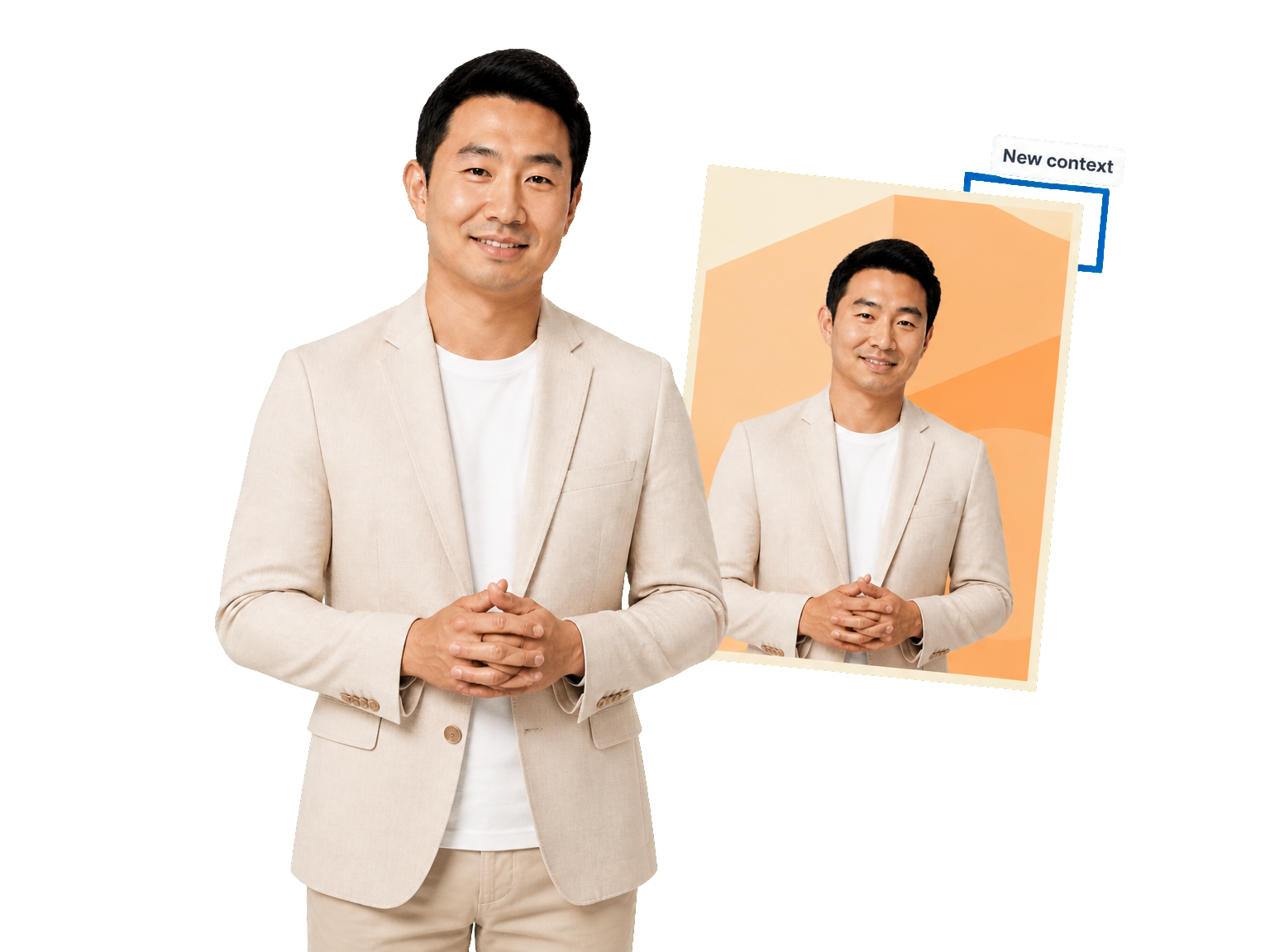
Campaign subjects, ready to place
Lift a person or prop out of a green-screen photo for posters, presentations, and campaign artwork.
Your next cutout
How to remove a green screen
Use the green screen remover to turn your original photo into a subject ready for a new composition.
Upload your photo
Add the green-screen image you want to edit.
Remove the backdrop
Run the tool to separate the subject from the green background.
Review and download
Check the cutout around the subject, then save the result.
Keep the subject
Keep your subject with a green screen remover
Move from a studio backdrop to a cutout that belongs in your next creative project.
Subject-first separation
Keep attention on the person or object, away from the backdrop.
Fine edges in focus
Preserve the visual character of hair and clothing edges.
Keep the original character
Carry the subject’s pose, expression, and colors into the cutout.
Keep open spaces clear
Separate the backdrop inside handles and between a subject’s arms.
Portraits and products
Handle people, merchandise, and props photographed against green.
Check before you place
Inspect the silhouette before adding the cutout to your artwork.
Creative workflows
From studio shots to finished layouts
"The green screen remover gave me a headshot cutout I could place straight into the speaker poster. The shoulders looked clean against the artwork."
"I separated a ceramic mug from our green studio backdrop. The handle opening stayed clear when I placed the product into the catalog layout."
"Our campaign portrait no longer carried the green studio wall into the design. I could focus on the composition around the person."
"The cutout kept the presenter’s expression and jacket details together. It made the transition from studio photo to slide artwork much easier."
Practical answers
Green screen remover questions
How does the green screen remover work?
Can I download a transparent image?
Which files can I upload?
Is the green screen remover free, and how many credits does it use?
How should I check hair and green clothing?
Can the tool remove green spill or change the background?
Can I use the green screen remover on a blue backdrop?
Are my photos processed locally in the browser?
Leave the screen behind