
Anime upscaling
Anime Upscaler for Manga, Stills, and Illustrations
Enlarge anime stills, manga panels, and illustrations with attention to the original drawing, composition, and color design.
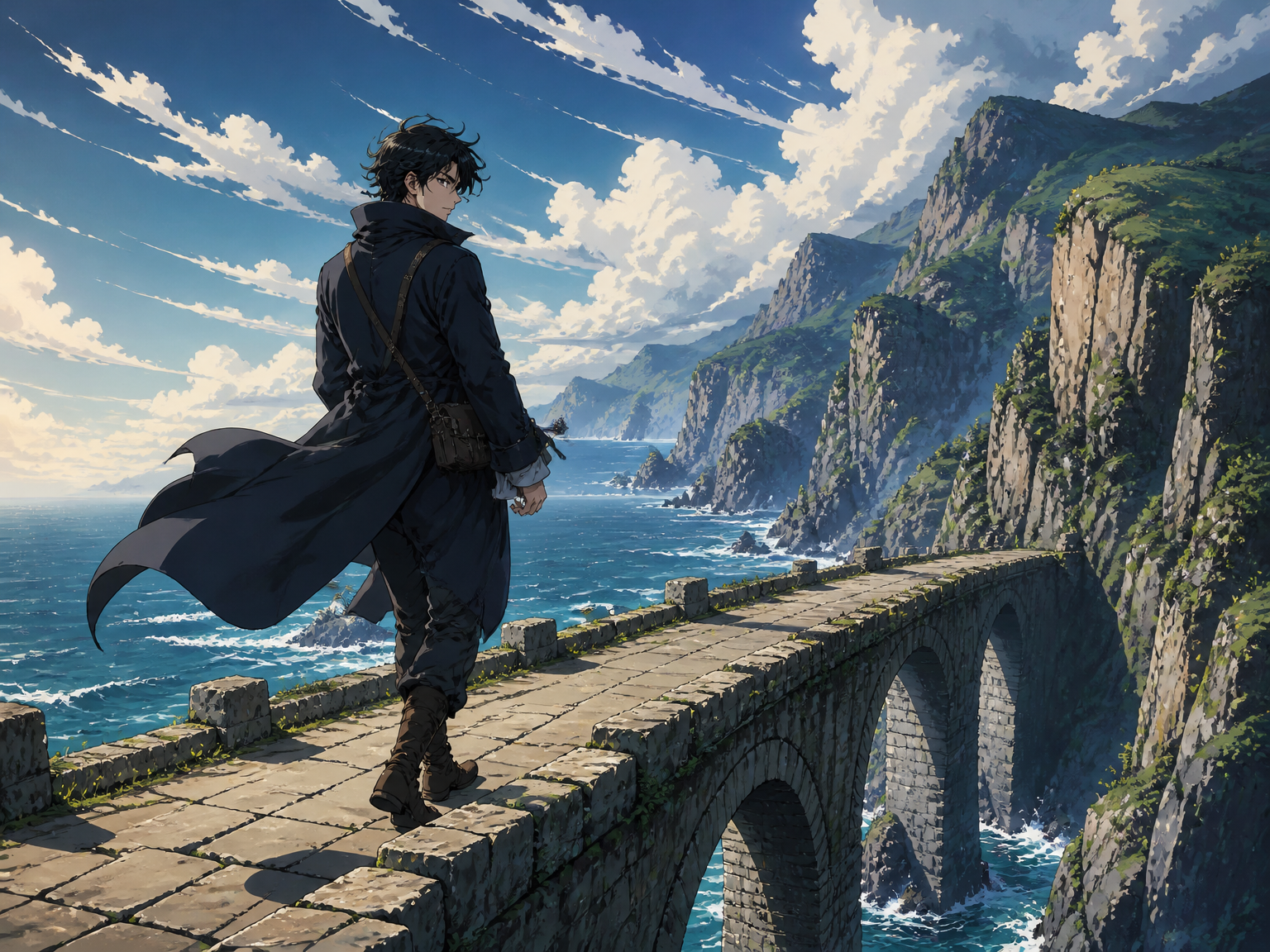
Made for drawn images
Upscale anime artwork for everyday viewing
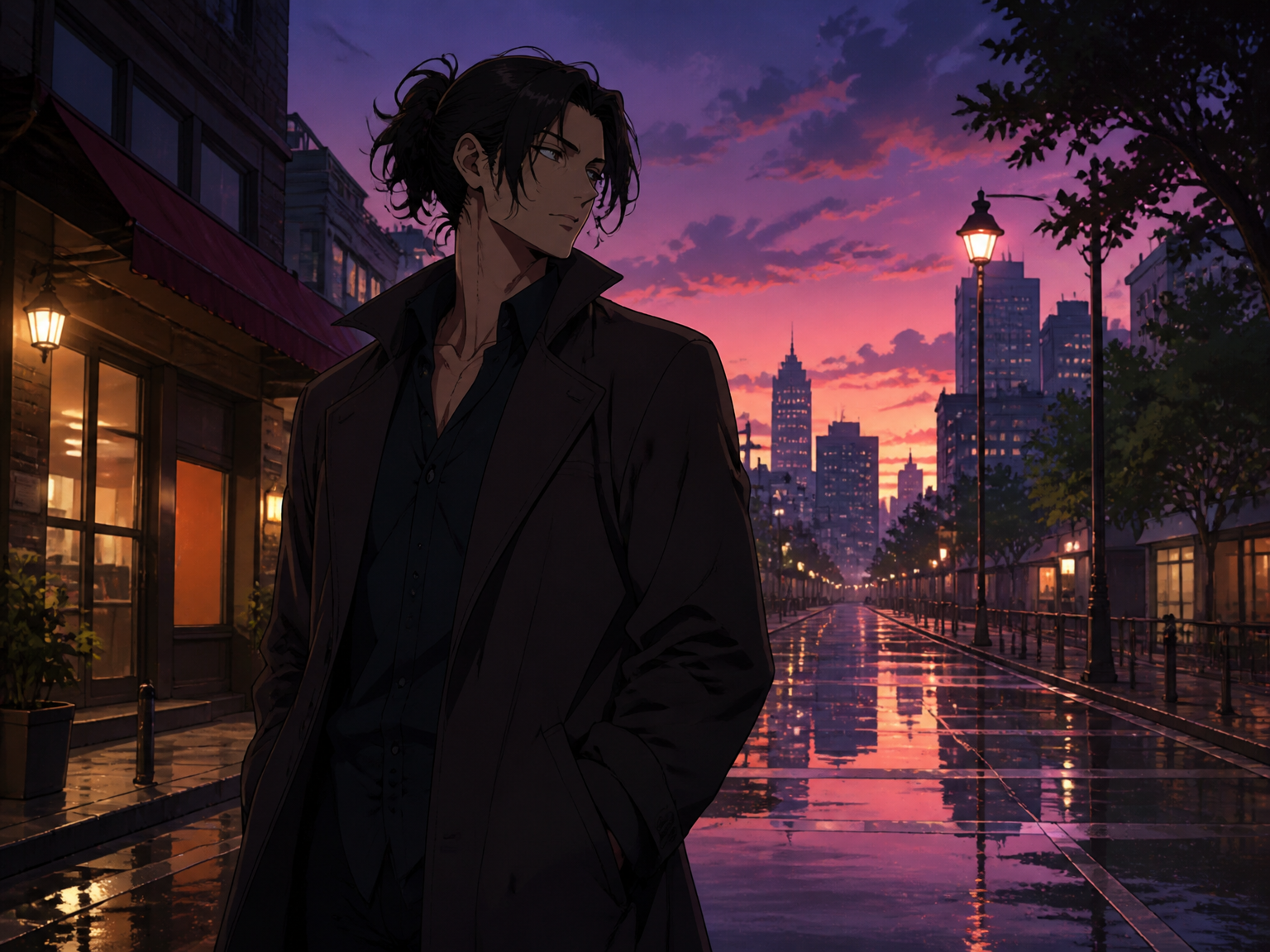
Anime stills and saved frames
Upscale a saved scene for wallpapers, references, or posts. Keep the original framing and character placement in view as the image grows.
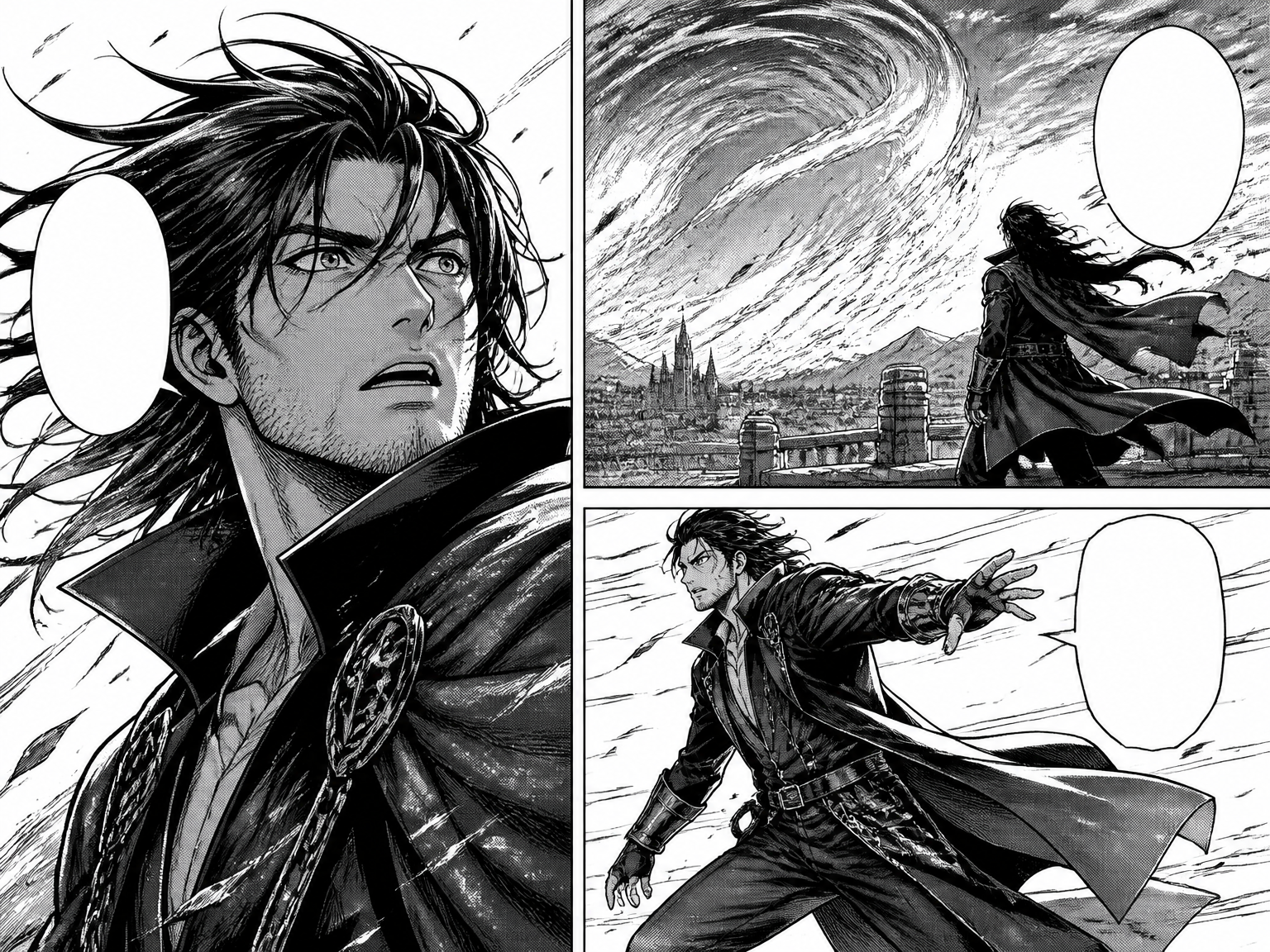
Manga and line art
Give a scanned panel or ink drawing more room on screen, with ink contours, speech bubbles, and page composition kept recognizable.
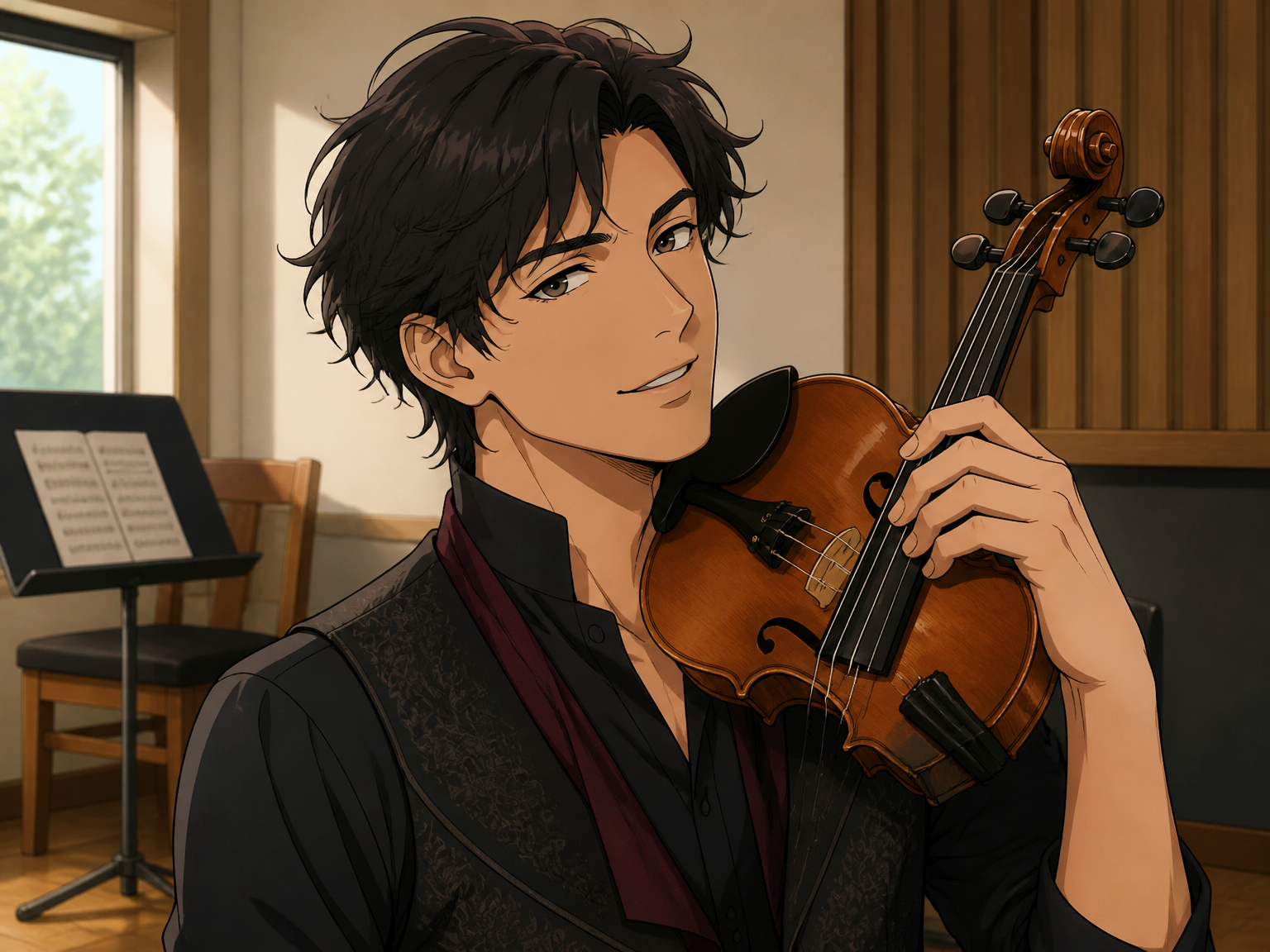
Character art and fan illustrations
Bring a small character drawing into a larger layout while keeping the artist's original shapes, colors, and expression in focus.
From source to larger image
How to use the anime upscaler
An anime upscale starts with a still image: add your source, create a larger version, then review it before saving.
Upload your image
Add the anime still, manga panel, or illustration you want to enlarge.
Run the upscale
Start the image upscale and let the tool create a larger version of your source.
Review and download
Compare the result with the original and save it when the lines and details look right.
What matters in drawn artwork
Keep anime linework and color blocks in focus
Anime art relies on deliberate contours, flat color areas, and stylized detail. A larger image should keep those visual traits at the center of the composition.
Preserve the scene identity
Keep character design, expression, pose, and framing tied to the source image.
Refine existing linework
Focus on visible contours and original line weight rather than adding photo-like texture.
Respect flat-color artwork
Retain cel shading, gradients, screen tones, and deliberate color boundaries.
Avoid invented detail
Keep recovery focused on details already supported by the source artwork.
Manga-aware cleanup
Keep panel borders, speech bubbles, and lettering in their original arrangement.
Style stays illustrated
Avoid turning drawn artwork into a photographic or heavily retouched look.
For the details that matter
Made for anime art in real workflows
"My saved anime frames are easier to use in reference boards now. The character framing still feels familiar after enlargement."
"Small manga panels are more comfortable to inspect on a larger screen, especially when I want to study the ink shapes."
"The color blocks and outline style still feel like the original drawing, not a photo filter. I like checking the result side by side."
"I use it when a small character image needs more room in a layout. Reviewing the enlarged version before export is straightforward."
Anime upscaler questions
What to know before you upscale
What is an anime upscaler?
Can I upscale manga panels and anime screenshots?
Can I upscale a full anime video?
Will it preserve line art and flat colors?
Does it keep pixel art as hard square pixels?
Can I use an anime 4K upscaler to create 4K images?
Is Anime Upscaler free to use?
Does Anime Upscaler use a separate anime model?
Ready to enlarge your artwork