
AI Photo Cleanup
Clean Up Pictures and Keep the Original Scene
Clean up pictures by removing unwanted objects, people, and stray text. AI rebuilds the cleared space with nearby detail while keeping the rest of the scene intact.
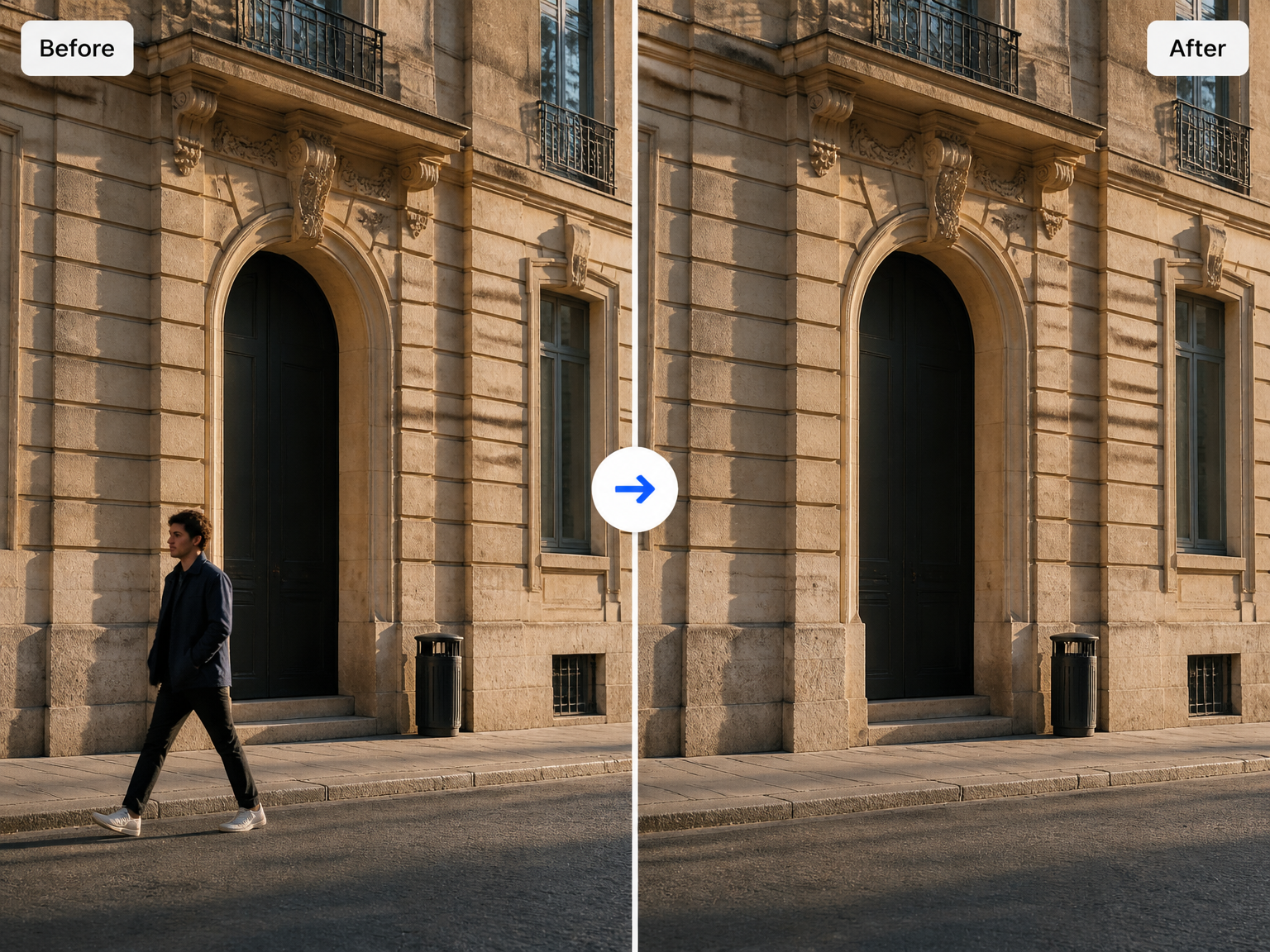
Everyday Photo Cleanup
Clean Up Pictures for Travel, Property, and Product Photos
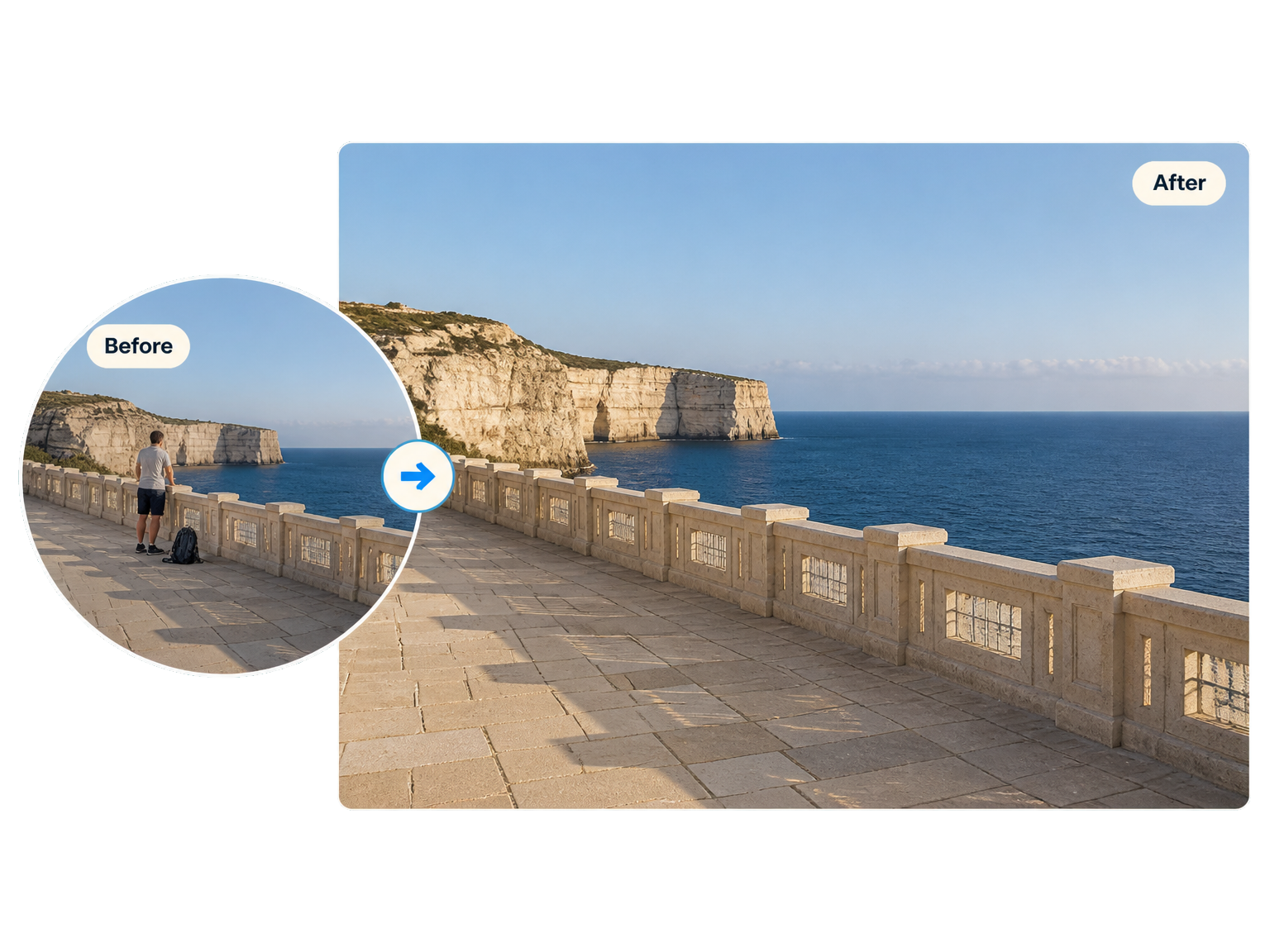
Clear People from Travel Shots
Remove people from photos of landmarks and landscapes so the place you captured stays in focus.
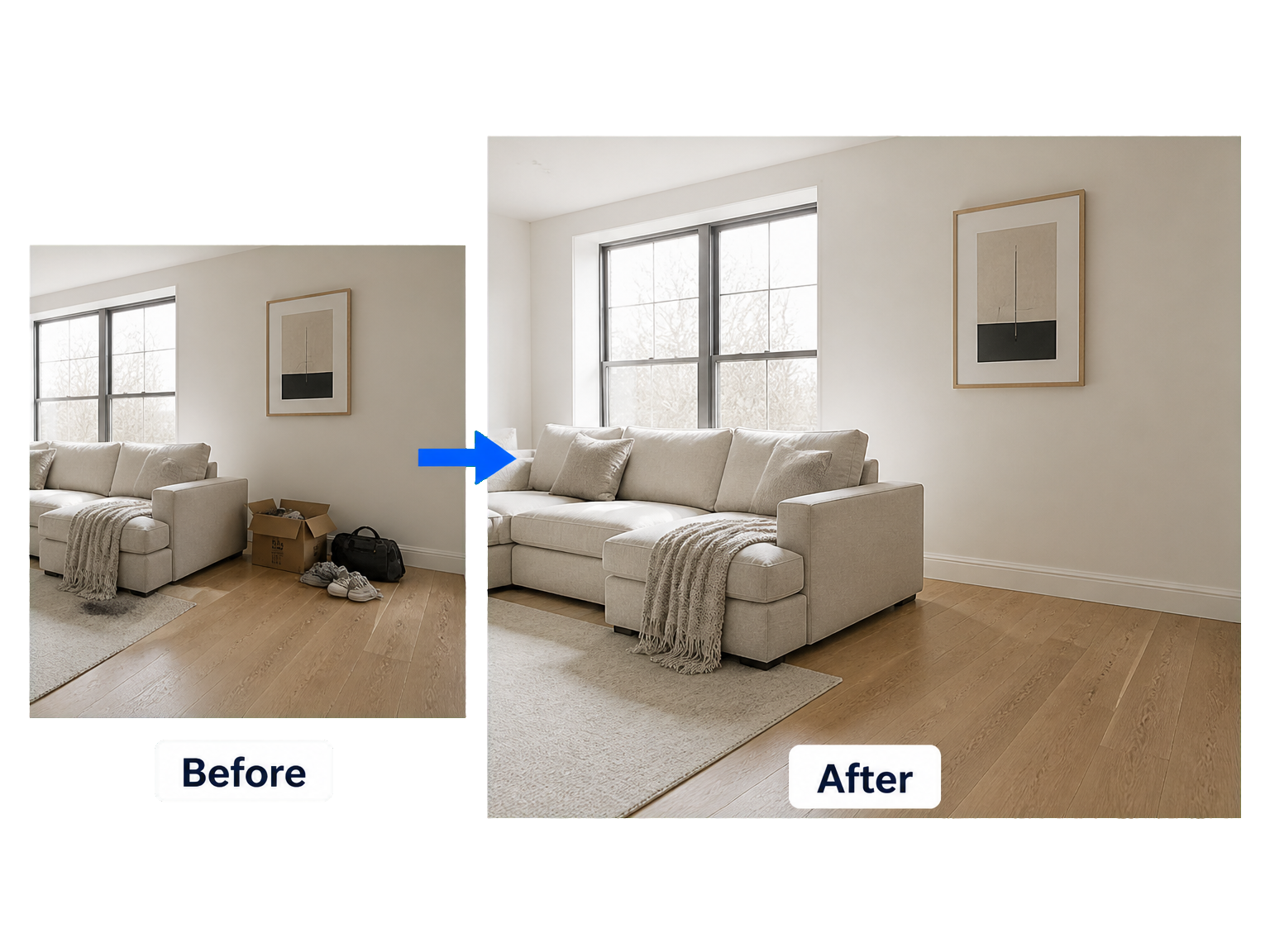
Prepare Room Photos for Listings
Remove personal items and stray clutter from interior photos so the layout, light, and finishes can take center stage.
Keep Product Photos Focused
Clear unwanted objects around a product so the item stays the visual center of a polished listing or campaign image.
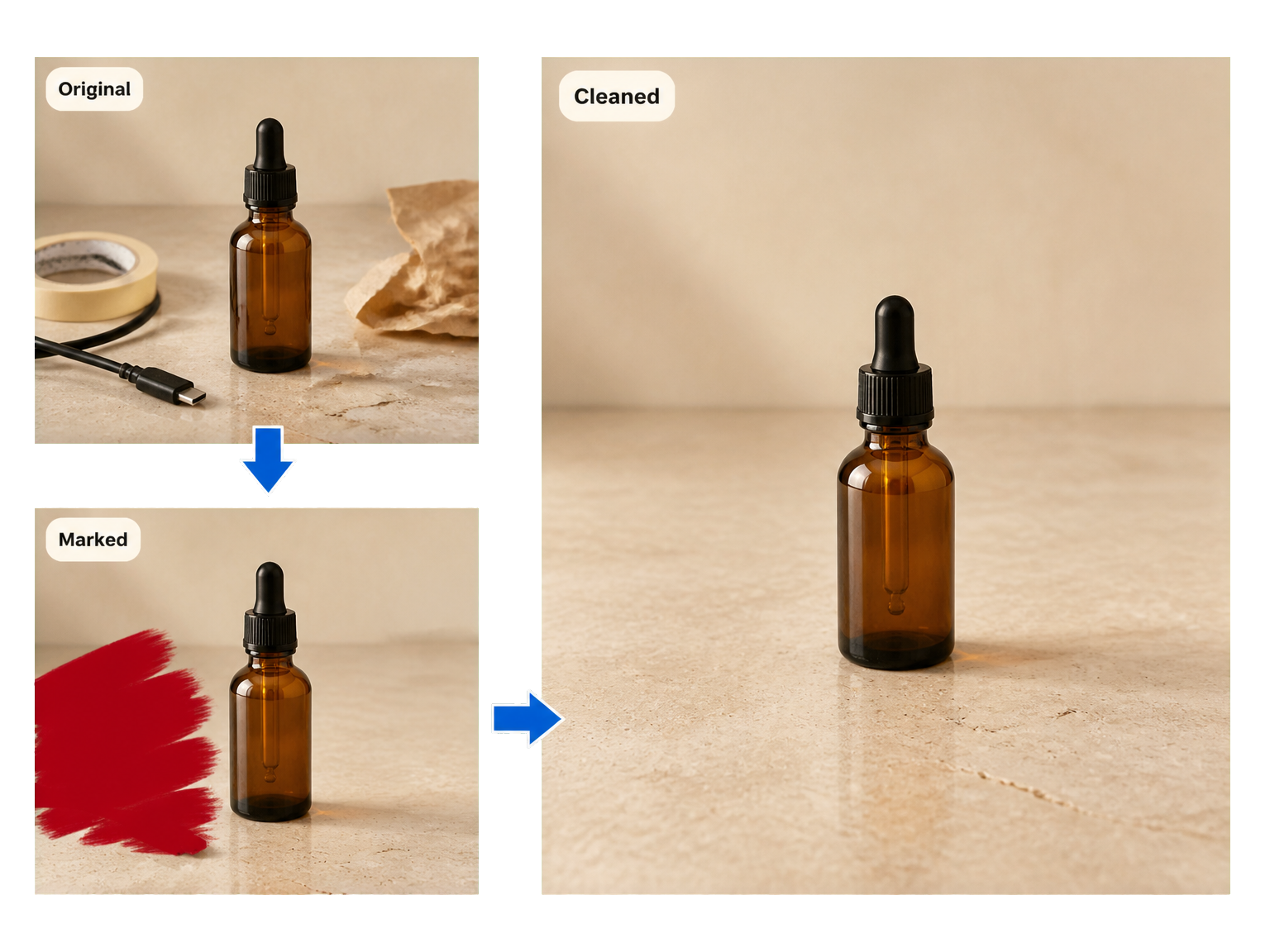
A Simple Photo Cleanup Flow
How to Clean Up Pictures in Three Steps
Upload the photo you want to keep, create a focused cleanup, and review the scene with distractions removed.
Upload Your Photo
Add the picture you want to clean up.
Generate the Cleanup
Start the edit and let AI remove the distractions and rebuild the scene.
Review and Download
Check the finished photo, then save the cleaned result.
Focused Photo Cleanup
Remove the Distractions, Keep the Photo
Photo cleanup should keep the story of the shot intact. Focus the edit on unwanted content while preserving the subject, framing, and visual character of the original.
Remove What Pulls Focus
Clear unwanted objects, people, and text so the main subject becomes the first thing viewers notice.
Rebuild the Missing Scene
Fill the cleared space with nearby textures, edges, and colors that fit the surrounding photo.
Keep the Original Frame
Preserve the main subject, composition, lighting, and unmarked details while the distraction disappears.
Match the Existing Light
Continue the scene's lighting and shadow patterns through the repaired area so the edit sits naturally within the original photo.
Clear Text and Date Marks
Remove stray captions, logos, and date stamps that pull attention away from the photo's main subject.
Keep the View You Captured
Remove a sign, cable, or passerby while keeping the surrounding street and architecture in focus.
Real-World Results
See the Same Scene Without the Distraction
"I can clear a passerby from a landmark shot and keep the view looking like the moment I wanted to share."
"Removing personal items from room photos helps each listing feel more open and lets the space speak for itself."
"I use it to clean stray objects around product photos so the item stays the first thing shoppers notice."
"I use it to clear distracting signs from street photos so the architecture and the people I wanted to capture stay in view."
Photo Cleanup FAQ
Clean Up Pictures: Common Questions
How do I clean up a picture with AI?
Can I remove objects from photos?
How do I mark the area I want removed?
Is it free to clean up pictures, and how many credits does it use?
Which image formats and resolutions are supported?
Can I clean up pictures online on my phone?
Does AI fill in the area after an object is removed?
Will the rest of my photo stay the same?
Ready to Remove Photo Distractions