
AI people remover
Remove People from Photos, Keep the Scene
Remove people from photos and bring the scene back into focus. Clear passing crowds, photobombers, and unwanted figures while rebuilding the space they leave behind.
Photos worth keeping
Clear the crowd from travel, portraits, and spaces
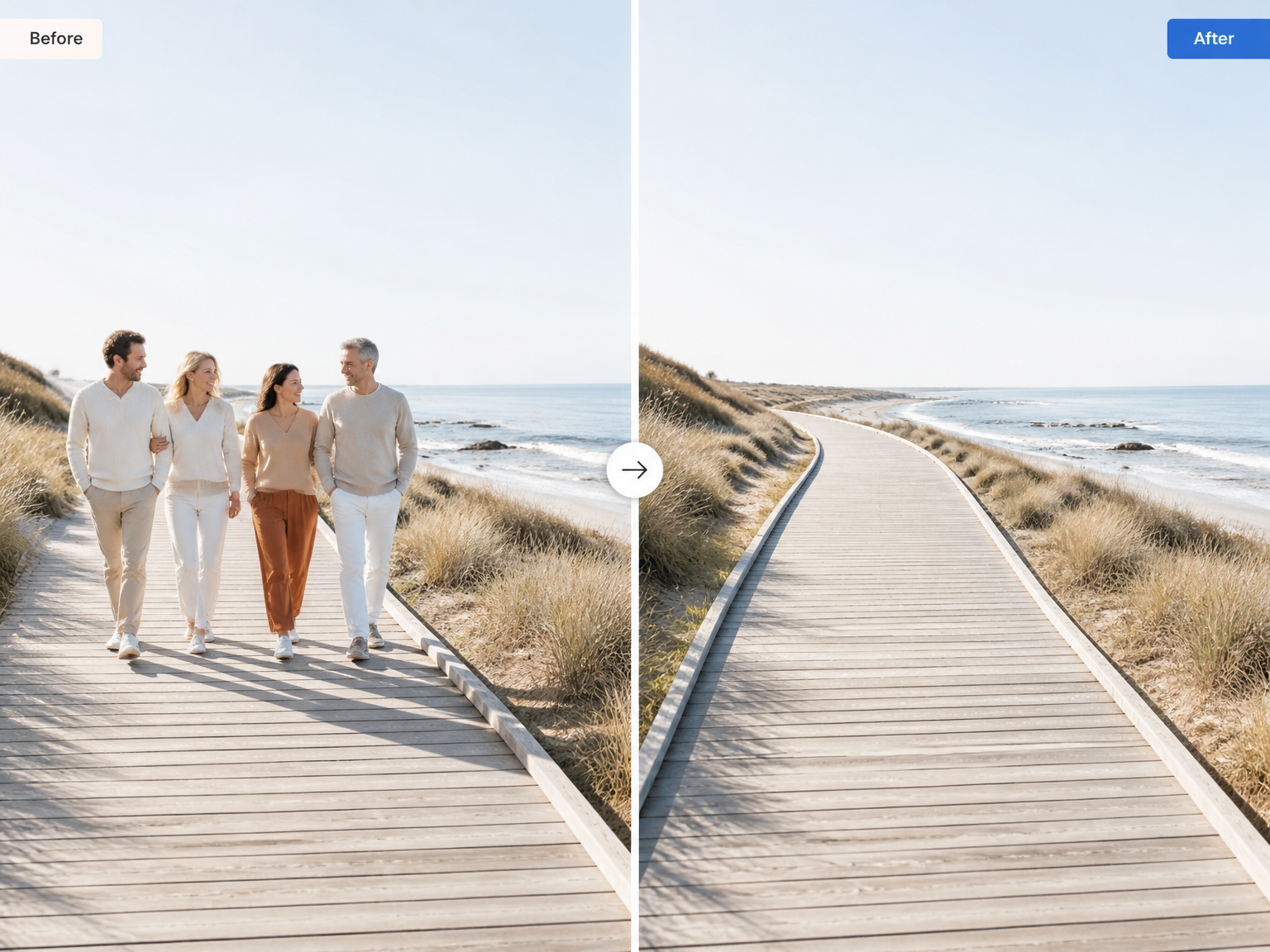
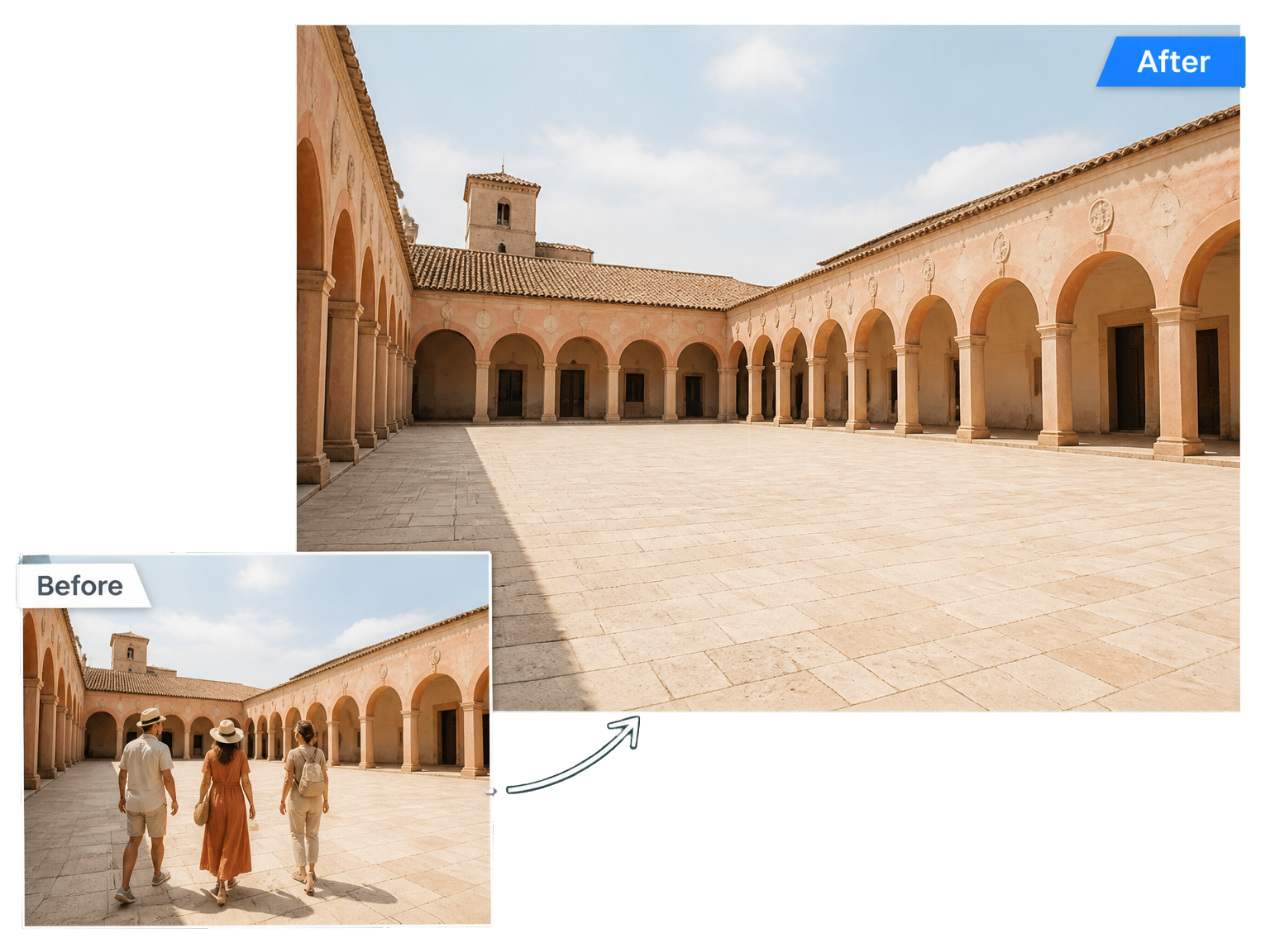
Travel scenes without the crowds
Remove people from photos of courtyards, coastal paths, and favorite landmarks. Let the paving, architecture, and open view become the picture again.
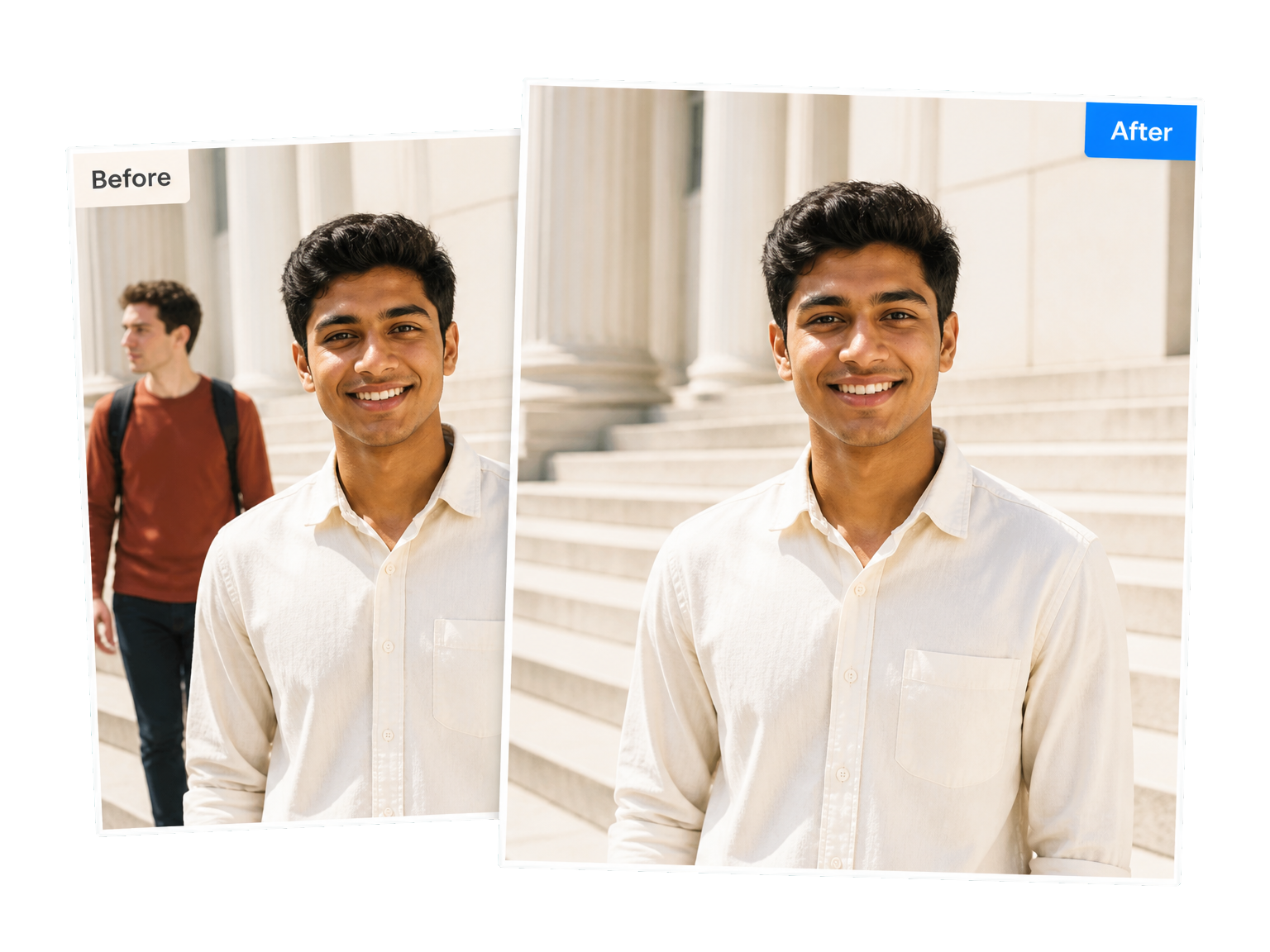
A portrait without the photobomber
Remove a person from a photo without losing the person you came to photograph. Clear the stranger behind your subject and keep the portrait at the center of the story.
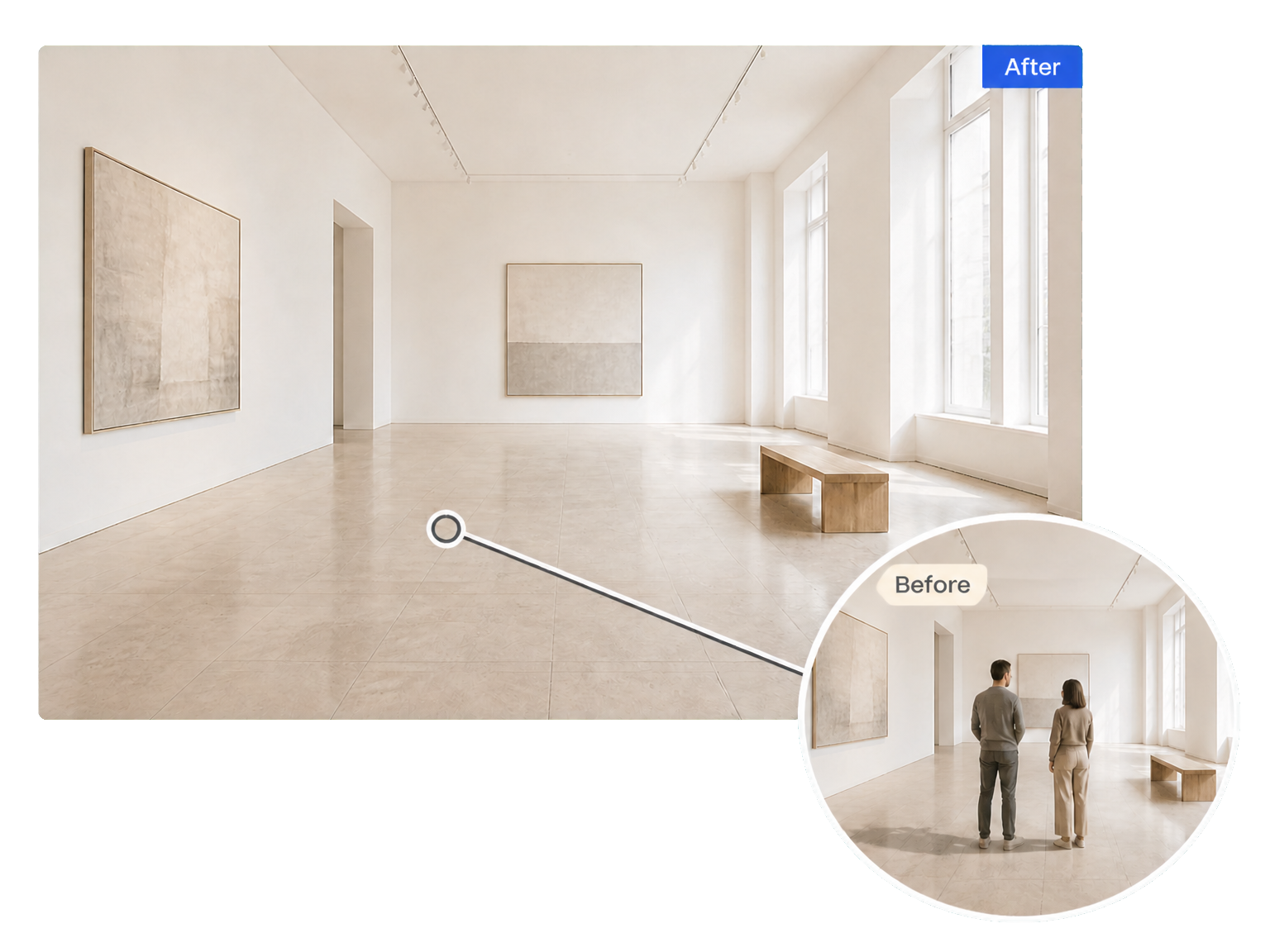
Spaces ready to show
Clear passing visitors from interiors and venue photos. Give clients a clearer view of the furniture, floor plan, and atmosphere instead of the people crossing the room.
From busy to clear
How to remove people from photos
Start with the photo you want to keep. Finish with a clearer scene and a background that belongs in the picture.
Upload your photo
Add the photo with the people you want gone.
Create the cleaned photo
Run the people remover to rebuild the scene around the removed figures.
Review and download
Check the restored space, then download your finished photo.
The scene stays the story
Remove people. Keep the setting.
Remove people from photos while giving the surrounding scene the attention it deserves.
Backgrounds that connect
Continue the paving, walls, and textures around removed figures so the cleared space feels part of the scene.
The people you want to keep
Create a cleaner portrait or group photo with the focus on the people who belong in your picture.
Fewer traces of the crowd
Address the shadows and reflections that accompany unwanted people, along with the figures themselves.
Your original point of view
Keep the framing, perspective, and atmosphere that made you take the photo in the first place.
Clear the whole view
Turn a busy location shot into an uncluttered view of the place.
Keep the story personal
Leave an unexpected passerby out of a portrait that matters to you.
Photo stories
A clearer scene, a better keepsake
"The visitors crossing our exhibition room are gone. The wall displays and the floor finally tell the same visual story."
"A stranger behind my sister distracted from her graduation portrait. Now the attention stays on her smile and the campus steps."
"Our cottage living room looks ready for guests again. The delivery crew no longer appears in the doorway."
"I wanted the pier and the morning mist, without the walkers in front. The cleaned photograph gives the water room to breathe."
Good to know
Remove people from photos: your questions
How do I remove people from photos automatically?
Can I remove a person from a photo and keep everyone else?
What replaces the people after removal?
Is it free to remove people from photos?
Can I process several photos?
What output sizes can I choose?
Does removing people also remove the whole background?
Can I remove people from photos online on my phone?
Make space for your photo