
AI background removal
Remove Color from Images
Remove the colored background and keep your subject in full color. Turn product shots, portraits, and artwork into cutouts ready for a fresh composition.
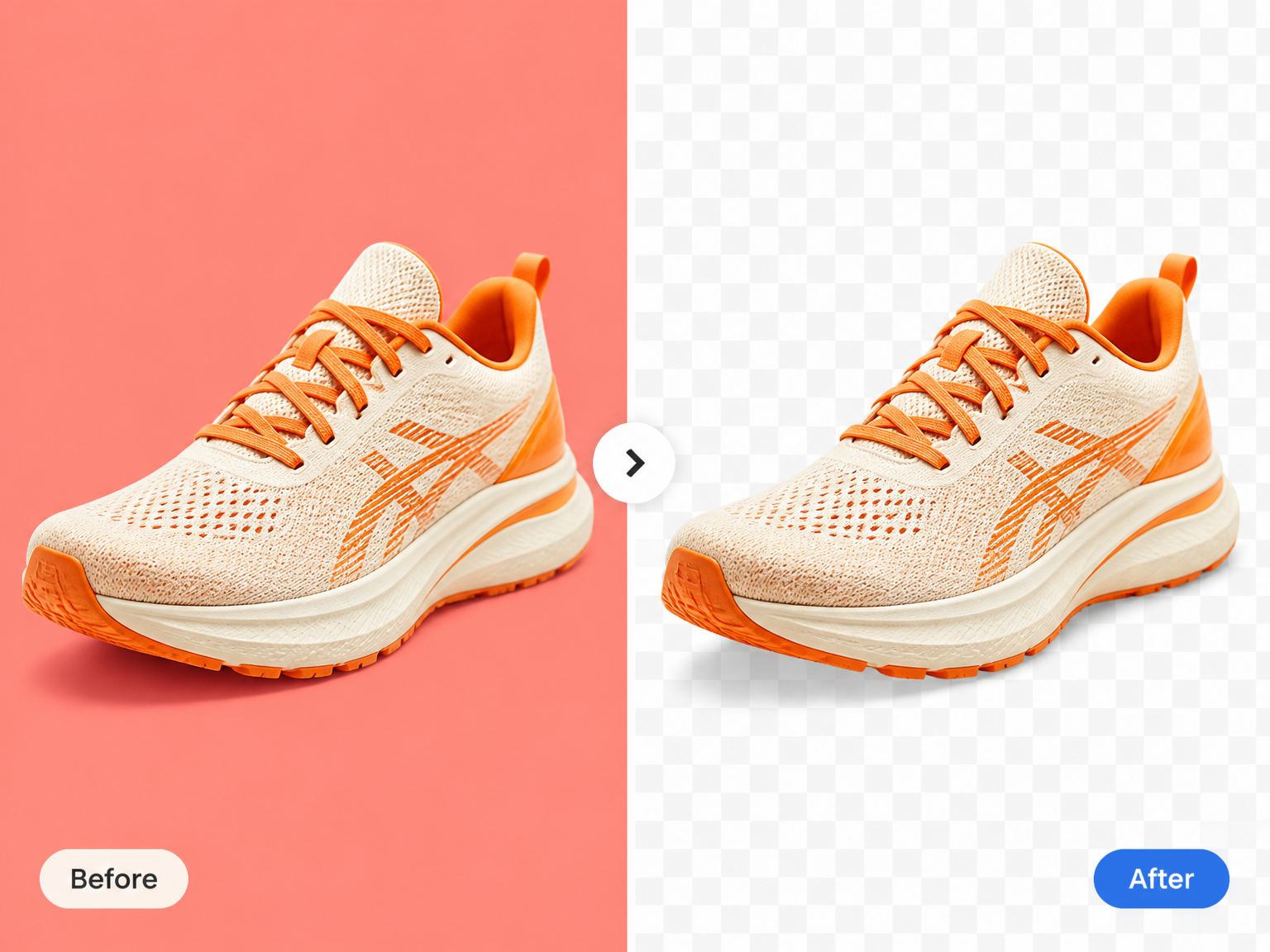
Everyday cutouts
Remove color from images for your next design
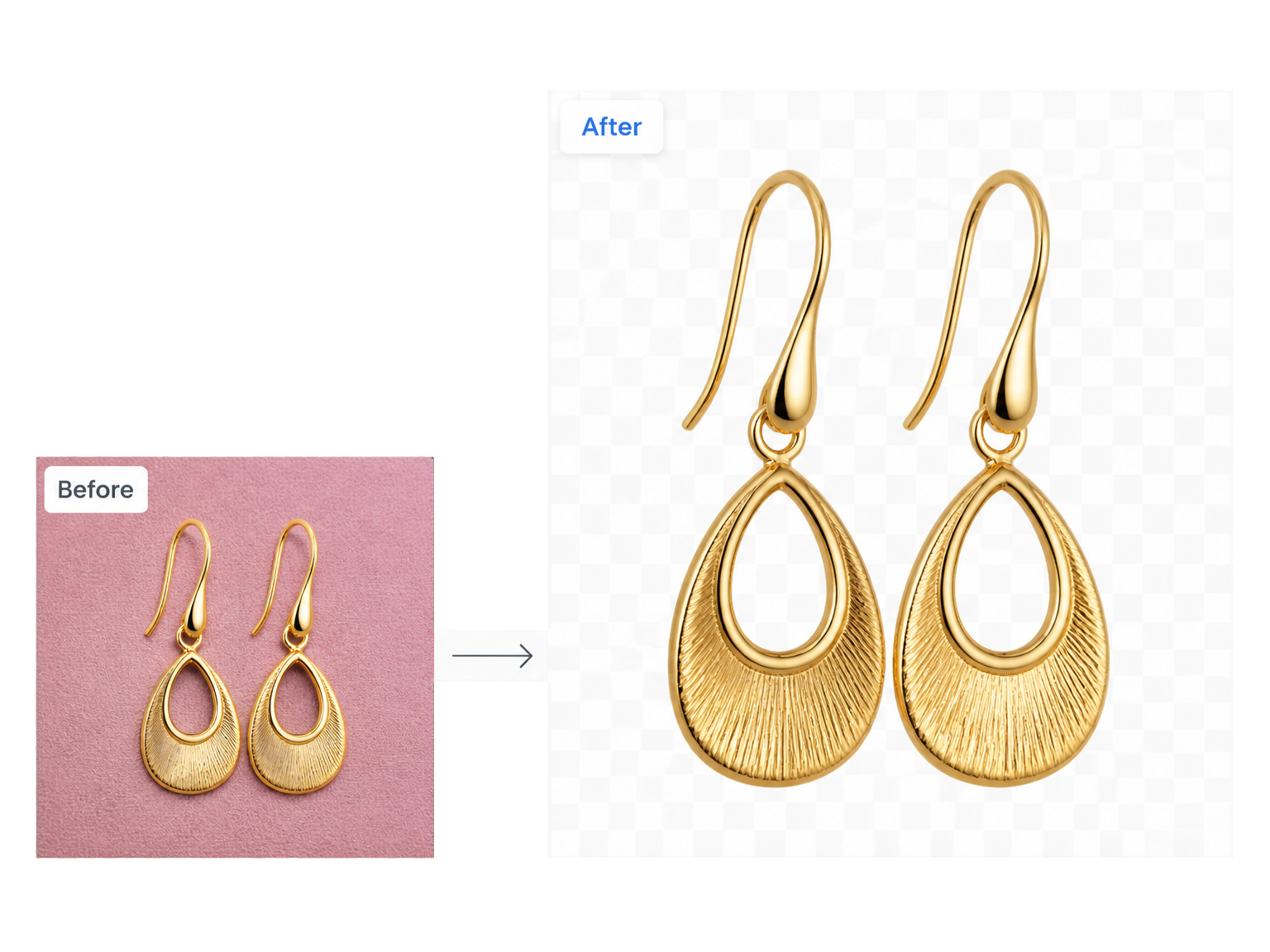
Product photos without the backdrop
Prepare shop listings by separating handmade jewelry from the colored studio backdrop. Keep the material, shape, and finish as the focus of your next product layout.
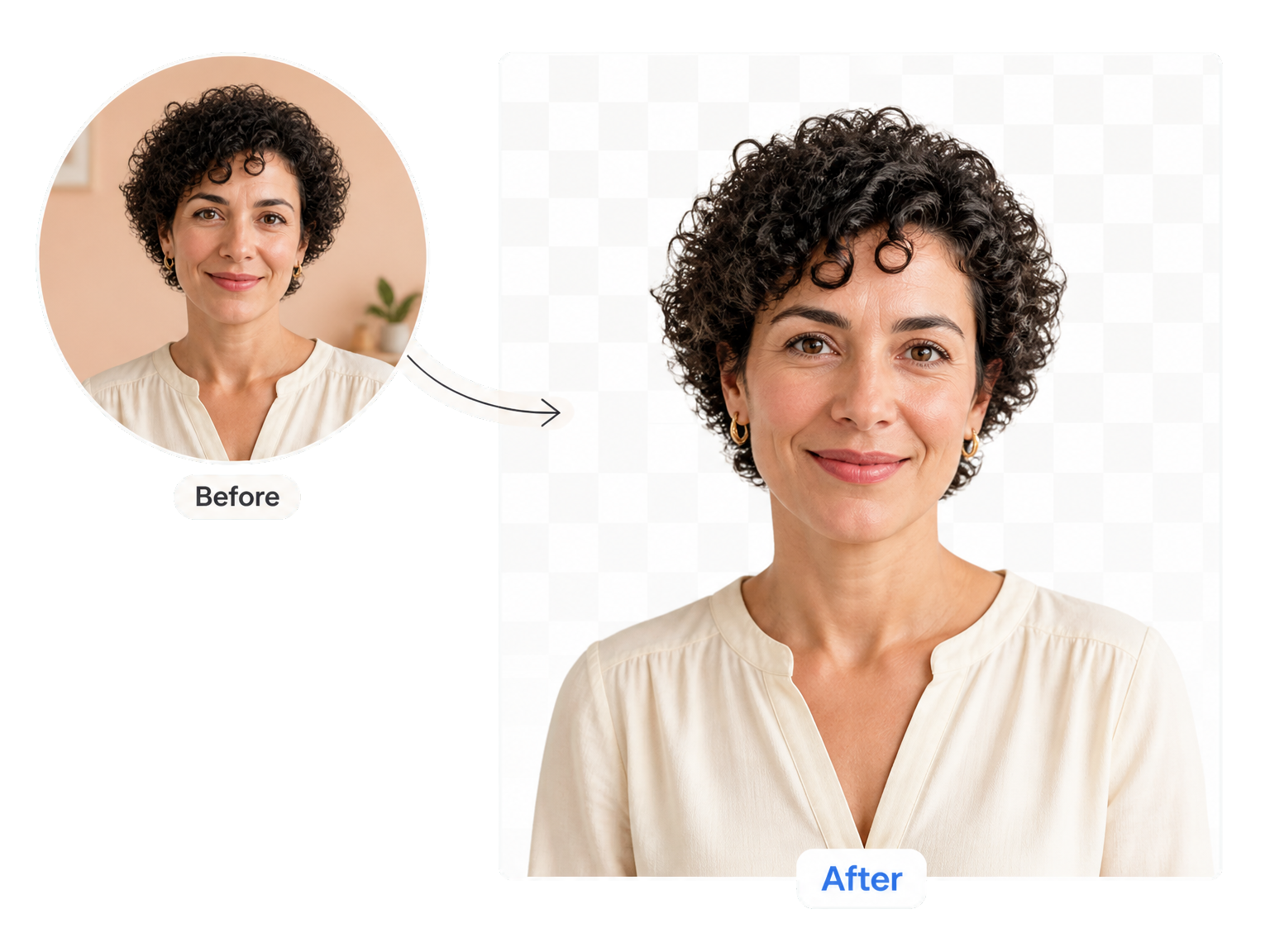
Portraits ready for a new setting
Remove color from images used in speaker profiles and team introductions. Separate the person from the room behind them while keeping clothing and facial colors intact.
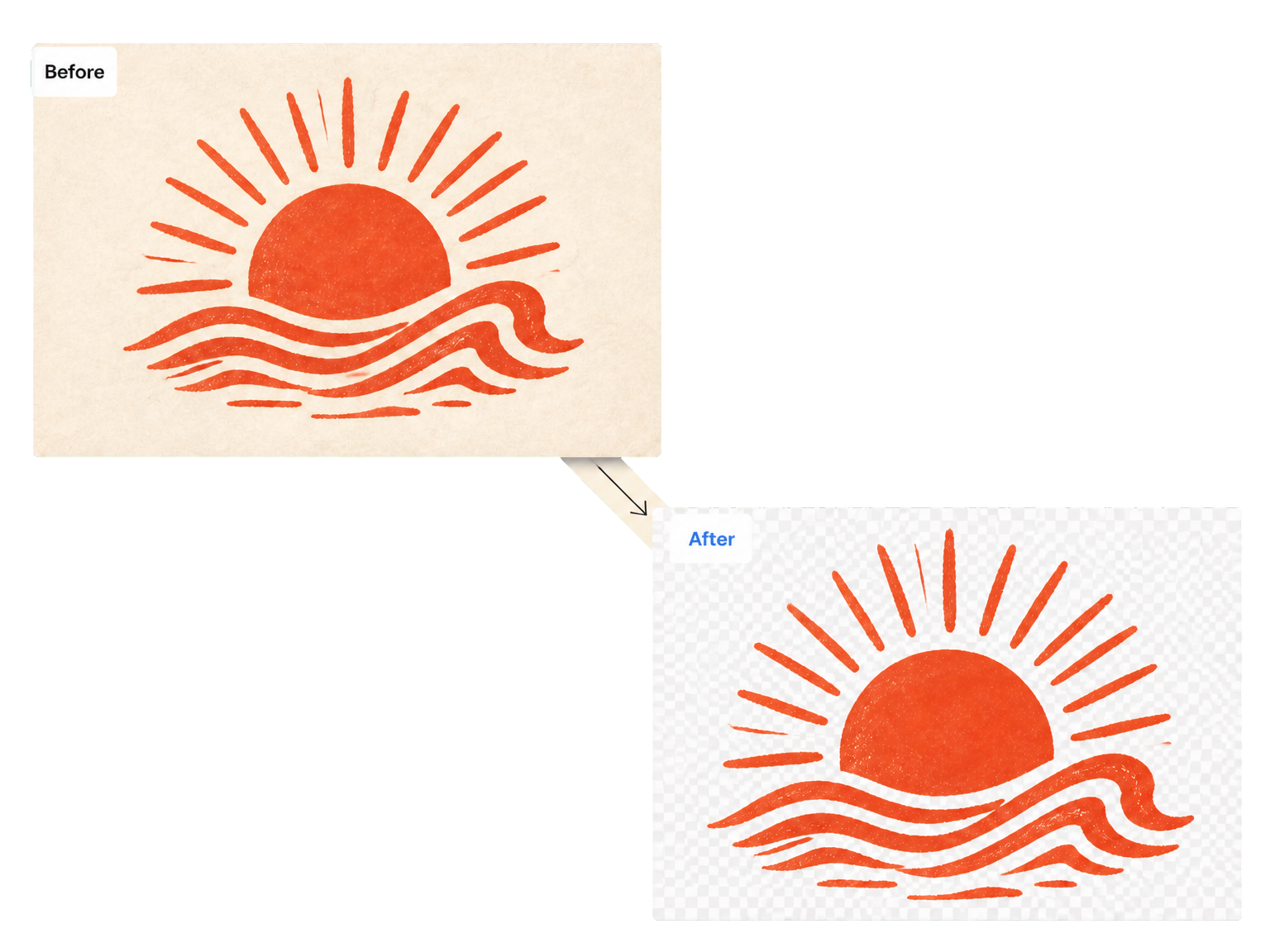
Artwork that belongs on the page
Lift illustrated emblems away from their colored backing. Place the artwork in presentation covers and event layouts without a surrounding rectangle competing with the design.
From photo to cutout
How to remove color from images
Upload your picture, let the background removal run, then save the subject for your next composition.
Upload your image
Add the product photo, portrait, or artwork with the background you want to remove.
Remove the background
Run the tool to separate the subject from its surroundings while preserving its colors.
Save your cutout
Review the subject and its outline, then download the result for your design.
Keep what matters
A clear subject, without the surrounding color
Remove color from images by clearing the backdrop, so the subject remains the visual anchor.
Original subject colors
Keep the warm metal of a necklace, the color of a jacket, and the shades in an illustration while the surrounding backdrop disappears.
Subject-aware separation
Separate the foreground subject from the scene behind it. The result follows the subject’s outline rather than erasing that same color throughout the picture.
Room for a fresh composition
Give portraits and products space to sit alongside headlines, supporting graphics, or a new scene without the old background framing them.
An outline that belongs to the subject
Keep curved earring hooks and the silhouette of a shoulder visible, so the cutout remains recognizable against its next setting.
Keep the subject recognizable
Retain the product’s shape and the person’s appearance as the background leaves the composition.
Reuse the visual focus
Carry the same subject into a new layout instead of rebuilding the shot around a different backdrop.
Workflow examples
Put the isolated subject to work
"Separate the jewelry from its studio backdrop, then arrange the cutout alongside product details in a shop collection layout."
"Place a speaker portrait beside an event title without carrying the room behind the speaker into the design."
"Remove the colored backing around an illustrated emblem so the artwork can sit naturally on the presentation cover."
"Keep a teammate’s clothing colors while clearing the background for a coordinated introduction slide."
Your questions
Remove color from images: questions answered
How does this tool remove color from images?
Can I pick a specific color to remove?
Does removing color make the image black and white?
What image formats and sizes can I upload?
What does the download contain?
How many credits does background removal cost?
Will colors inside my subject be removed too?
How is this different from changing a background color?
Give your subject a fresh start