
Colorize the Photos You Remember
Colorize Black and White Photos Across the Whole Scene
Colorize black and white photos with natural, scene-aware tones while keeping the original people, details, and composition intact.
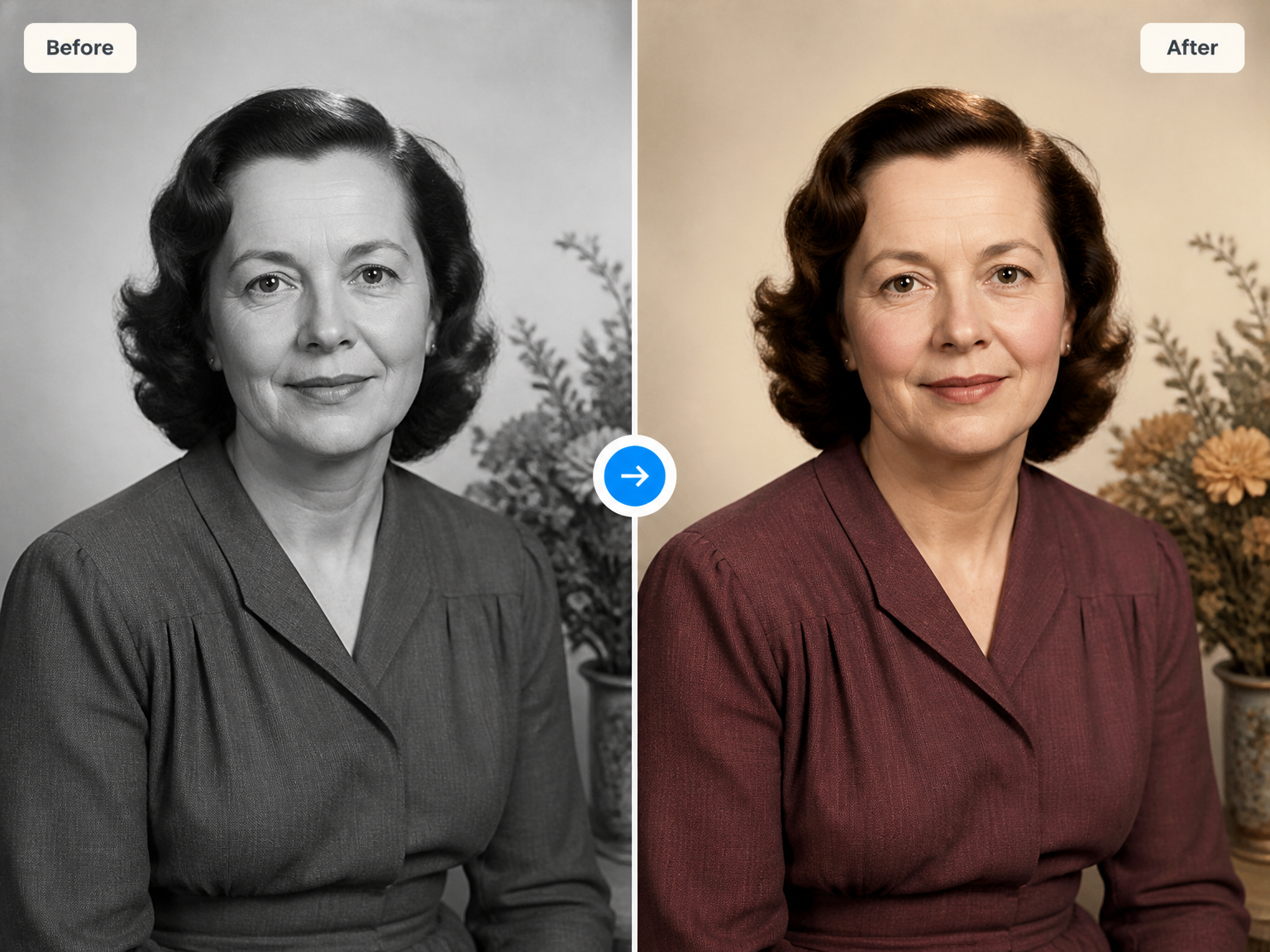
Old Photos, New Perspective
Bring Family Portraits and Historic Scenes into Color
Family Portraits
Add natural-looking color to a grandparent’s portrait, a wedding photograph, or a familiar face from a family album.
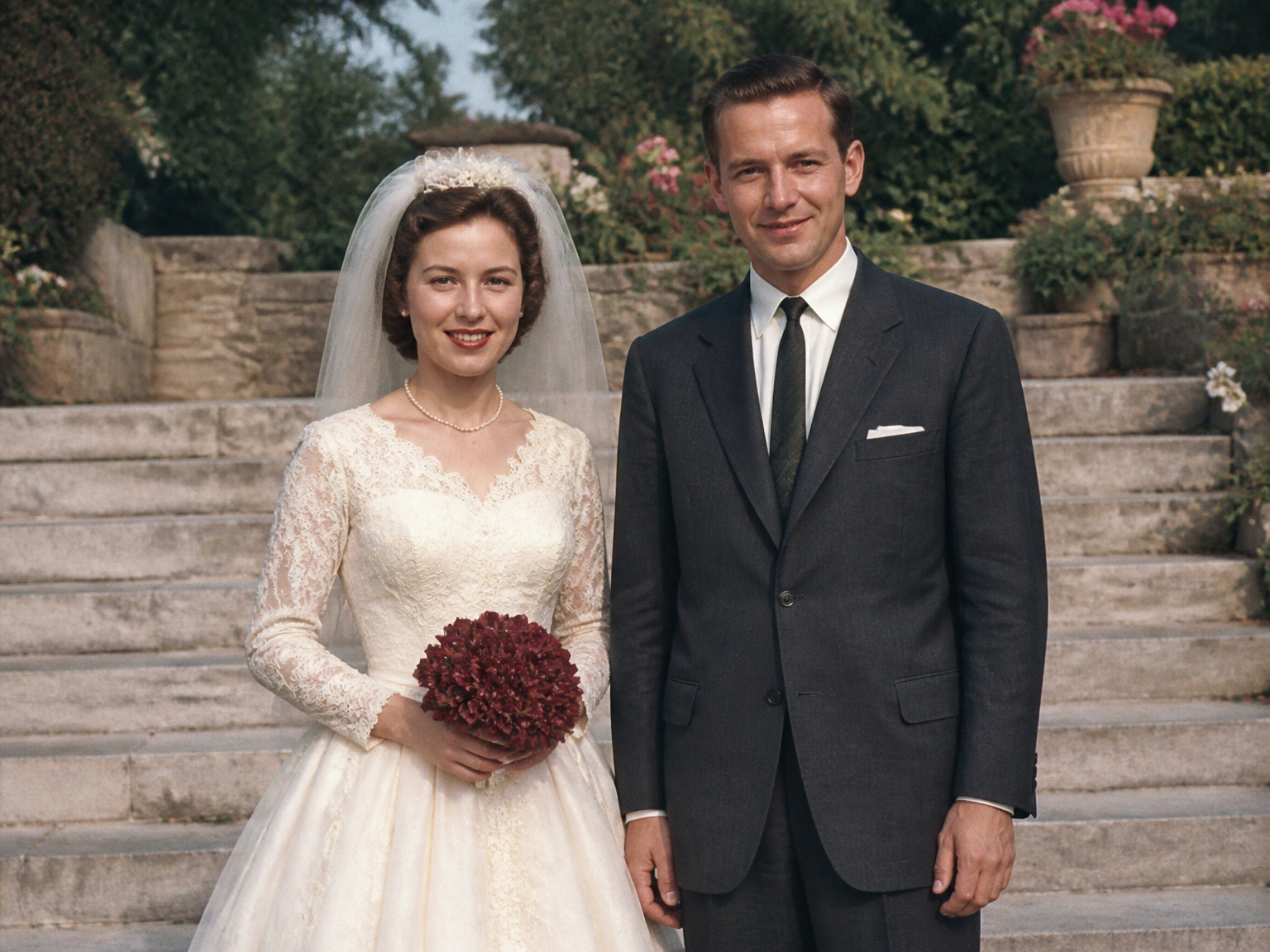
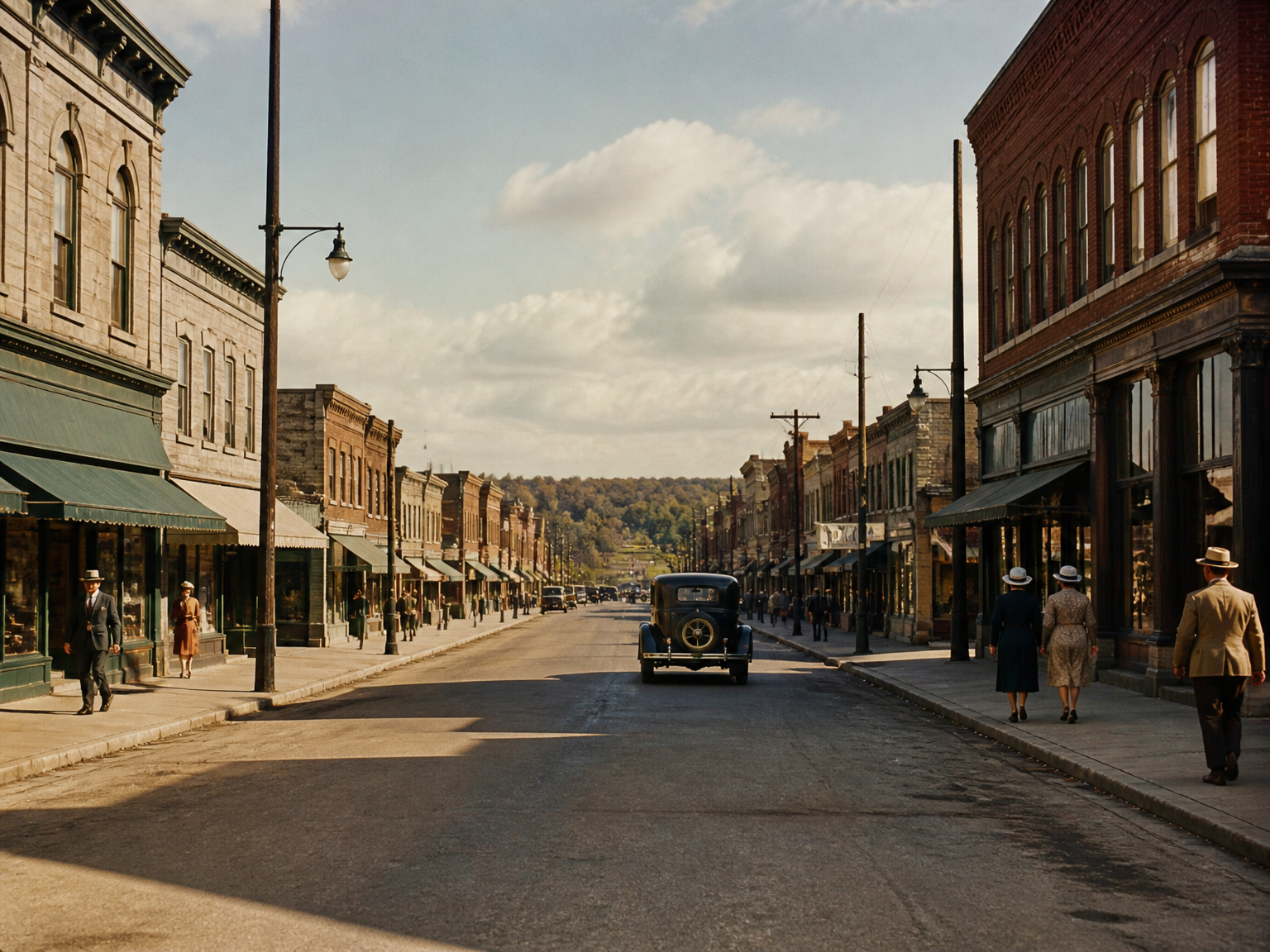
Historic Moments
Revisit archival street scenes, school photographs, and milestone events with color that makes the original setting feel more immediate.
Scanned Album Pages
Colorize a scanned album page while preserving the people, framing, and setting captured in the original image.
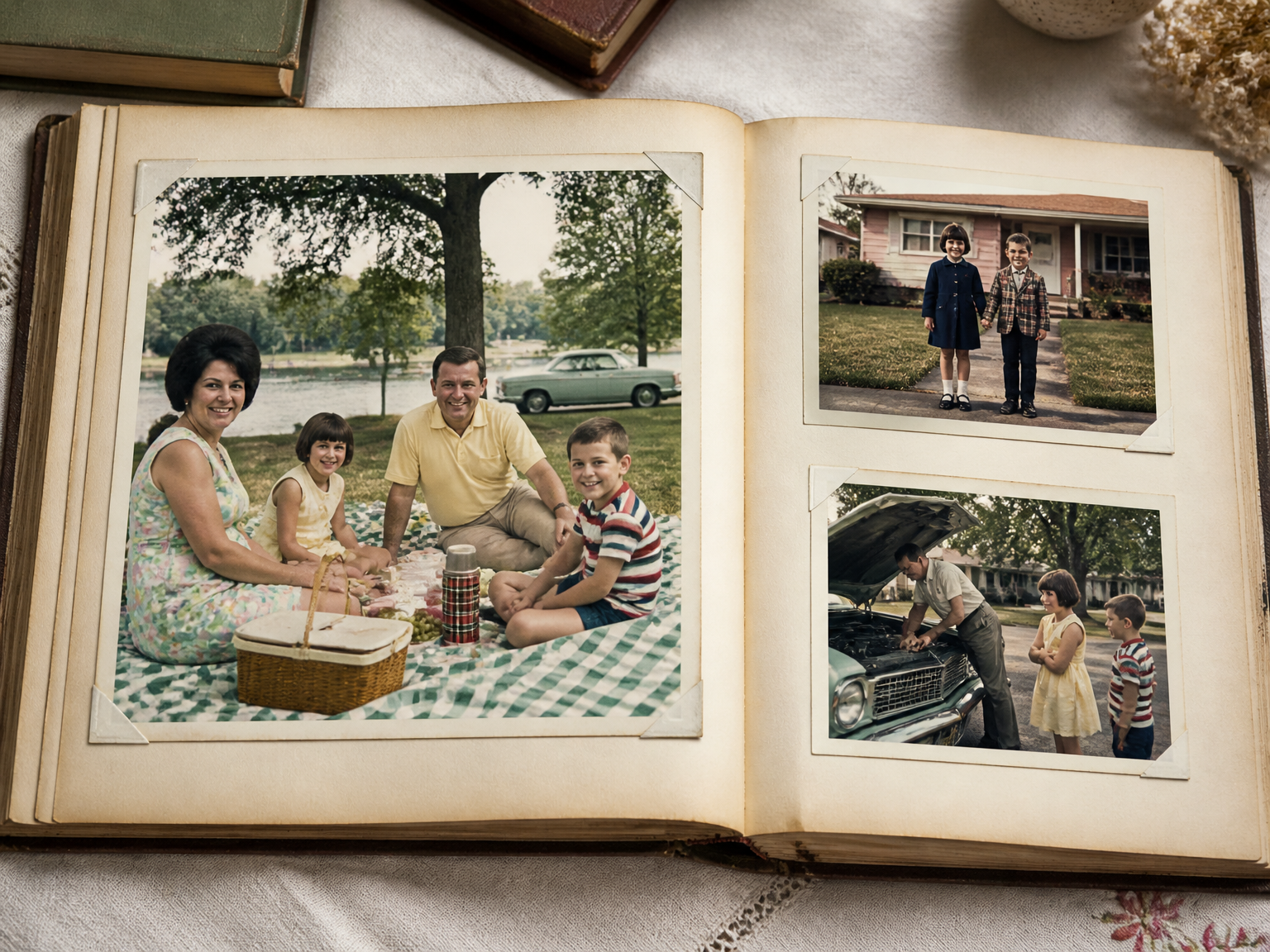
A Simple Colorization Workflow
How to Turn Black and White Photos into Color with AI
Upload a grayscale image, let the AI add color across the scene, then review and download the result.
Upload Your Photo
Choose the black-and-white portrait, family print, or historical image you want to colorize.
Add Natural Color
The AI applies scene-aware tones to faces, clothing, objects, and surroundings while preserving the original composition.
Review and Download
Review the colorized result, then save the finished image.
Color Added, Photo Preserved
Colorize Black and White Photos with Original Detail
Add color to grayscale images while keeping the photograph’s original structure, lighting, and visual character at the center.
Natural Tones for Faces and Fabrics
Give skin, hair, clothing, and familiar objects believable color that follows the photograph’s existing light.
Original Details Stay in Place
Keep the same faces, expressions, textures, and framing while color is added to the existing photograph.
Light and Shadow Stay Natural
Preserve tonal depth so color follows the photo’s original highlights, shadows, and atmosphere.
From Subject to Background
Carry the same cohesive color treatment from the main subject through architecture, scenery, and the background, so the whole photograph reads as one colorized image.
A Fresh View of Familiar Faces
Bring family portraits and personal milestones into color without changing who appears in the photograph.
Context-Guided Color Choices
Use visible clothing, materials, and surroundings to guide plausible tones that fit the photograph’s setting.
Stories Behind the Photos
A New Way to Revisit Old Memories
"I colorized a black-and-white portrait of my grandmother and could finally picture the dress and flowers in color. The photograph still felt like the same familiar moment."
"Our local history group uses colorized street photographs in exhibit drafts. Seeing the buildings and clothing in color makes each scene easier for visitors to imagine."
"I wanted to add color to my parents’ wedding photo without changing their expressions or the original setting. The result kept the moment recognizable."
"Our school archive holds rows of grayscale class portraits. Colorizing selected photographs gave our reunion display a more immediate connection to the people in them."
Photo Colorization Answers
Colorize Black and White Photos: Common Questions
How do I colorize black and white photos online?
Are the colors historically accurate?
Does colorization preserve the original details?
Which image formats can I upload?
Can I colorize multiple photos at once?
Can I colorize a photo without signing in or uploading it?
Can I colorize black and white photos for free?
How many credits does each colorization use?
When should I use colorization instead of photo restoration?
Your Photos, in Color